 admin
admin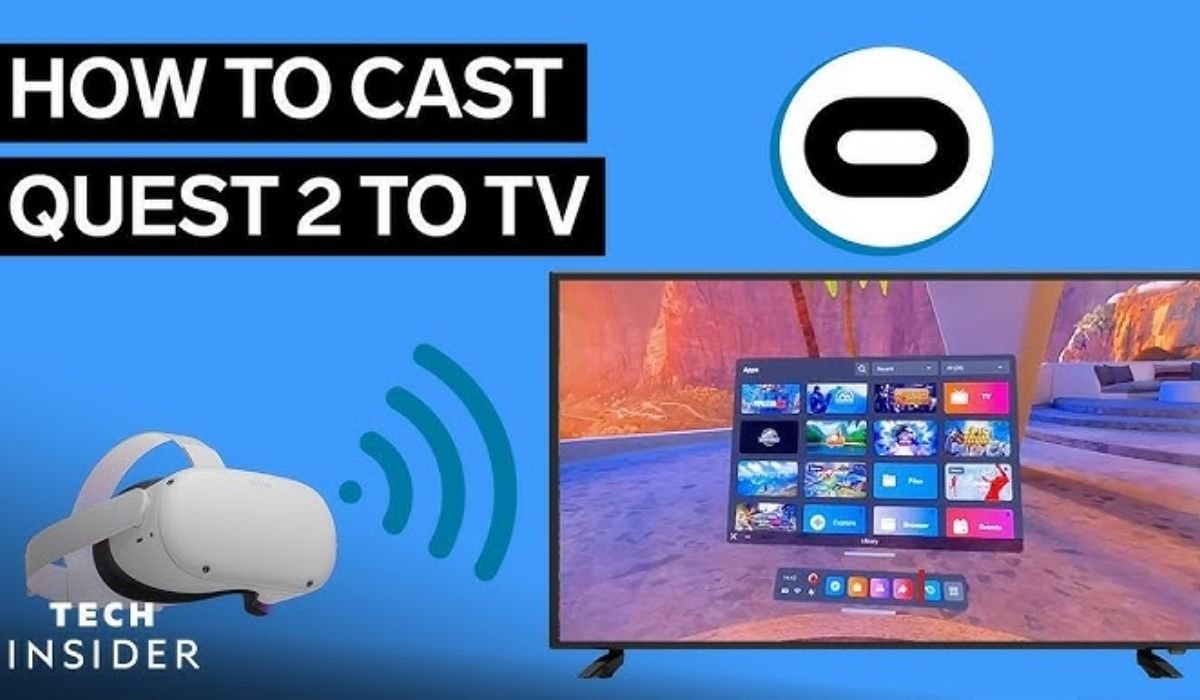
If you want to share your virtual reality journey with friends, learning how to cast Oculus to TV is a game-changer. Virtual reality is often an isolating experience, but casting allows everyone in the room to see exactly what the player sees inside the headset. Whether you are showing off your high scores in rhythm games or helping a friend navigate a challenging puzzle, bringing the action to a larger screen makes the experience social and interactive. By following a few straightforward steps, you can bridge the gap between the digital world and your living room, turning solitary play into a fun, inclusive event.
| Feature | Details |
| Primary Goal | Cast Oculus to TV |
| Key Hardware | Quest 2/3/Pro, Chromecast/Smart TV |
| Connection | Same Wi-Fi network required |
| Ease of Use | High (Built-in software) |
| Main Benefit | Shared group immersion |
Understanding the Casting Technology
To cast Oculus to TV, you must first understand that the headset relies on Wi-Fi to transmit real-time video data. Your headset captures the high-resolution view from your lenses and sends it wirelessly to a receiver, which is typically a Google Chromecast device or a modern Smart TV with built-in casting support. Because this process happens over the air, a stable and strong connection is vital to avoid lag or stuttering. Understanding this wireless handshake is the secret to a smooth experience, as it allows you to troubleshoot connectivity problems quickly if the video feed ever drops during gameplay.
Preparing Your Devices for Casting
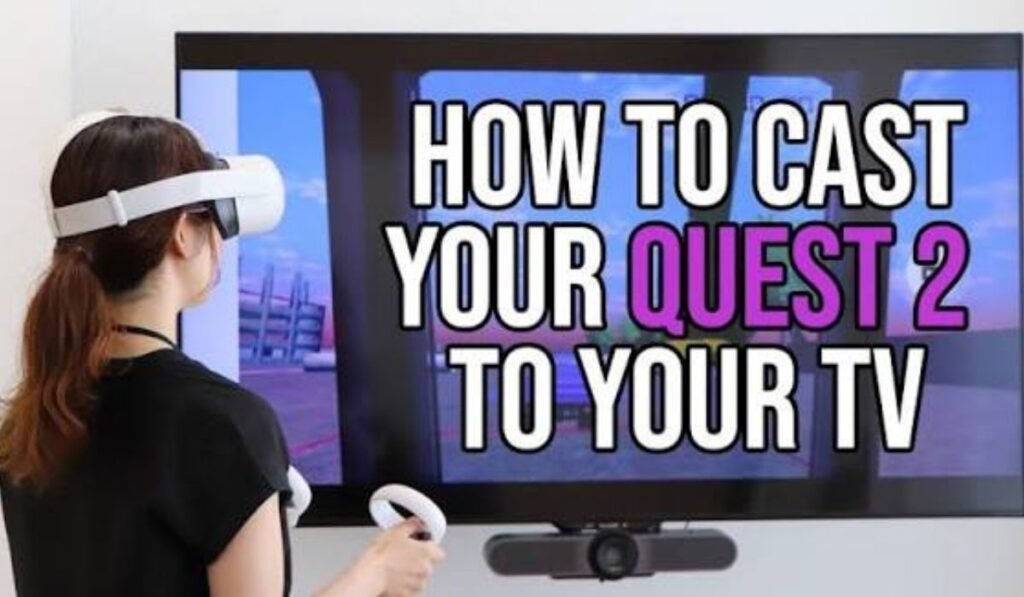
Before you attempt to cast Oculus to TV, ensure that both your headset and your television or streaming device are connected to the very same local Wi-Fi network. This is the most common reason for failure; if the devices are on different networks—such as a 2.4GHz versus a 5GHz band—they may not discover each other. Once connected, confirm that your television is powered on and set to the correct input if you are using an external hardware dongle. Proper preparation of your home network environment is the foundation for a reliable and high-definition streaming session.
Using the Built-in Casting Feature
The easiest way to cast Oculus to TV is by using the native software integrated into your headset’s operating system. Simply tap the “Sharing” icon—which looks like a curved arrow—within your Oculus menu bar. From there, select the “Cast” option. You will see a list of available devices on your network that are ready to receive the video stream. Tap your TV or Chromecast device, and the connection should begin instantly. This built-in system is designed to be intuitive and fast, allowing you to start streaming the action to your living room in just a few seconds.
Casting via the Mobile App
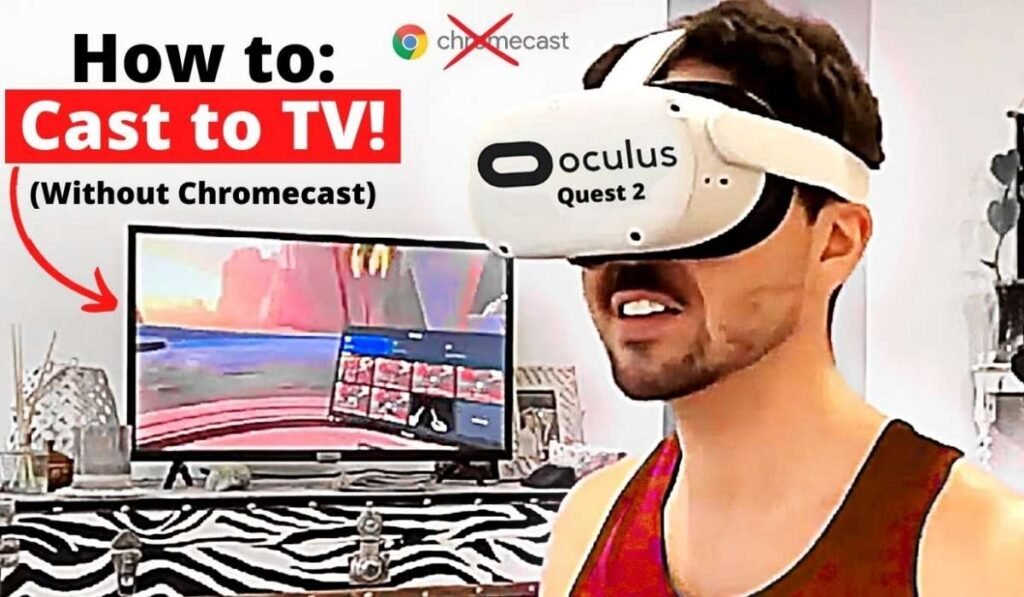
If the in-headset menu is not responding, you can cast Oculus to TV using the official mobile application on your smartphone. Open the app, ensure your headset is powered on, and tap the “Cast” icon located at the top right of the home screen. The app will search for your television or streaming device. Once selected, the stream should initialize on your TV. This method is incredibly helpful if you are trying to set up the cast for someone else playing in the headset, as it allows you to control the streaming session without needing to put the headset on yourself.
Troubleshooting Common Connection Errors
Sometimes, you might fail to cast Oculus to TV due to temporary software hiccups. If your device doesn’t appear in the list, the first step is to restart both your headset and your television or Chromecast dongle. A quick power cycle often clears up network discovery issues that prevent the devices from communicating. If the problem persists, check for any pending firmware updates for your headset, as newer versions often include critical improvements to wireless streaming performance. Cast Oculus to TV Keeping your software updated ensures you can always enjoy a stable connection whenever you feel like sharing your virtual experiences with others.
Improving Your Wi-Fi Signal Strength
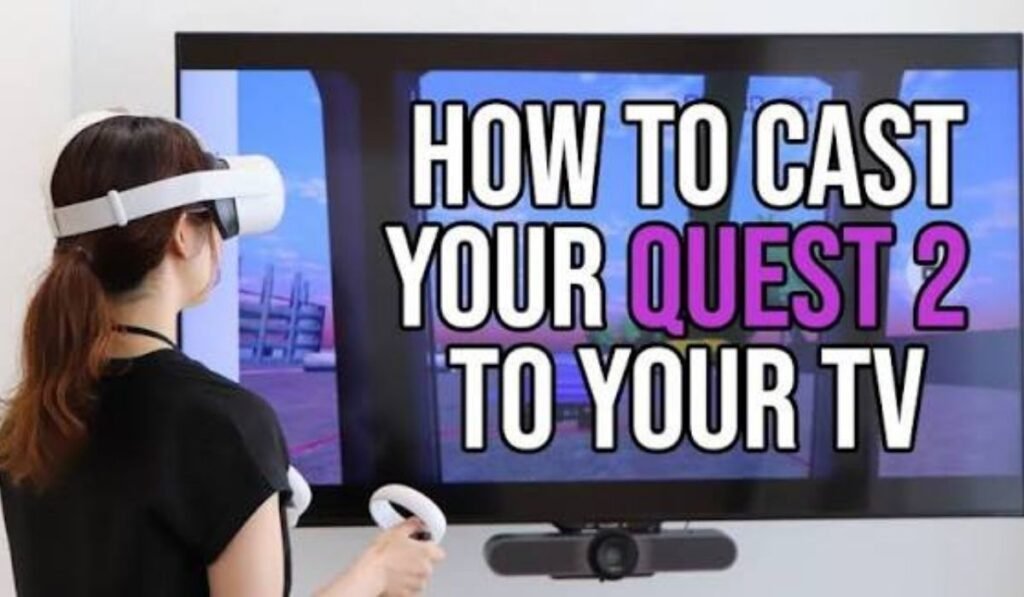
High-quality streaming requires significant bandwidth, so the way you cast Oculus to TV can be affected by your Wi-Fi signal strength. If you are playing in a room far from your router, the stream might look blurry or laggy. To resolve this, move your router closer to the gaming area or use a Wi-Fi extender to boost the signal. A strong, clear Wi-Fi connection is non-negotiable for low-latency streaming. Minimizing interference from other wireless devices, such as microwave ovens or cordless phones, can also help maintain a fluid video feed during your most intense gaming sessions.
Setting Up Google Chromecast as a Receiver
Many users find that a dedicated Google Chromecast device is the most reliable way to cast Oculus to TV. Simply plug the Chromecast into an open HDMI port on your television and follow the on-screen setup instructions via the Google Home app. Once the Chromecast is active and on the same network, it will appear as an available option in your Oculus sharing menu. Dedicated streaming hardware like Chromecast is generally more stable than built-in smart TV software, offering a more professional and robust solution for consistent, high-definition casting during your virtual reality sessions.
Dealing with Audio Sync Issues
Occasionally, when you cast Oculus to TV, the audio might feel slightly out of sync with the visuals on the screen. This is a common occurrence in wireless streaming due to the time it takes to compress and decompress the video data. To mitigate this, ensure your TV is set to “Game Mode,” which often reduces post-processing and latency. If the delay persists, some users find that using a high-quality external speaker system or a soundbar directly connected to the TV can improve the overall experience, providing better synchronization and audio clarity for those watching along with the player.
Casting to a Computer for Recording
If you want to record your gameplay while you cast Oculus to TV, you might find it easier to stream to a computer first. You can use the browser-based casting portal provided by the Oculus website to send the stream to your PC. Once it is on your computer, you can use screen-recording software to capture the footage while simultaneously outputting the video to your television via an HDMI cable. This method provides the most control, allowing you to save your gaming highlights while still letting friends or family watch the action on the big screen.
Managing Quality and Performance
When you decide to cast Oculus to TV, the headset prioritizes smooth gameplay over perfect streaming quality. If the stream looks a bit pixelated, it is because the device is dedicating its processing power to maintaining your framerate within the headset. This is intentional and necessary for a comfortable VR experience. If you notice significant performance drops, you might need to lower the quality settings in the casting menu, if available, or simply accept that the spectator stream may not match the crisp, high-resolution visuals that you are seeing directly inside your VR headset’s lens display.
Sharing Your Experience with Others
The ultimate goal of learning to cast Oculus to TV is to make virtual reality accessible to non-players. It is a fantastic way to introduce your family to the technology without the barrier of them needing to wear the headset. When you share the view, you become a guide. You can explain what you are doing, point out interesting details in the environment, and engage in a communal experience. This social aspect can turn a solitary gaming session into a lively party, especially with rhythm-based games where everyone can clap along or watch the player’s impressive movements.
Optimizing for Different TV Brands
The process to cast Oculus to TV can vary slightly depending on whether you have a Samsung, LG, Sony, or other smart television brand. Some TVs have a “Screen Mirroring” or “Miracast” feature that works well with the Quest. However, native app support can be hit-or-miss. If your TV does not appear in the menu, it is worth looking in your TV’s app store for a “Casting Receiver” app. Sometimes, a third-party app installed on your Smart TV can act as a bridge, allowing your headset to see the television as a valid streaming target.
Safety While Casting
When you cast Oculus to TV, safety should remain your top priority. The player in the headset is blind to the real world, and the viewers watching the TV are often so distracted by the action on screen that they forget to act as “spotters.” Always designate one person in the room to watch the player, not the screen, to ensure they do not bump into furniture or walls. Casting is fun, but it is not an excuse to let your guard down. A safe play area is just as important during a group session as it is during solo play.
Using Wired Solutions as a Backup
If you find that your Wi-Fi network simply cannot support the bandwidth required to cast Oculus to TV, you may need to look for a wired alternative. While the Quest is designed for wireless, you can technically use a link cable to your PC and then use the PC to display the image to your TV. While this is less convenient, it is the most reliable way to ensure a crystal-clear, lag-free image every single time. It is a great “Plan B” if your house has a challenging, crowded, or weak wireless environment that makes native casting impossible.
The Role of Latency in Spectator Viewing
Latency is the time delay between the player’s movement and the image appearing on the TV. When you cast Oculus to TV, some latency is unavoidable because the image must be encoded, transmitted, and decoded. Spectators should be aware of this, as the TV screen is essentially a recording of the past. If you are playing a game that requires lightning-fast reflexes, the spectators might see you react just a split second after you have already moved. Keeping this in mind helps manage expectations for the audience, ensuring they understand that the TV feed is a delayed mirror.
Troubleshooting Audio Problems
If you cast Oculus to TV and there is no sound, first check that the TV volume is not muted. If the volume is up, check the settings within your Oculus menu during the cast; some versions of the software allow you to toggle the audio stream separately. If that fails, restart the streaming session. Sometimes the audio channel fails to connect during the initial handshake. A fresh start to the casting session usually resolves this. Also, ensure your TV is not set to a “Direct Audio” mode that might be conflicting with the wireless input signal.
Limiting Notifications During Casting
To ensure the best experience when you cast Oculus to TV, enable “Do Not Disturb” mode on your headset. This prevents intrusive system notifications, battery warnings, or friend requests from popping up on the big screen during your gameplay. It keeps the broadcast clean and professional. Your spectators want to see the game, not your private messages or system alerts. By keeping the interface uncluttered, you maintain the “magic” of the experience, ensuring that nothing breaks the immersion for the people sitting on the couch and watching the action unfold in real-time.
Customizing the View for Spectators
Not all games look great when you cast Oculus to TV. Some titles provide a “Spectator Mode” in their internal settings, which offers a smoother, wider field of view than the standard single-eye feed from the headset. Before you start casting, check the game’s settings menu for “Streaming” or “Spectator” options. Enabling these can make your gameplay look much more cinematic and enjoyable for your audience. It is a simple step that shows you care about the spectator experience, making your VR sessions feel more like a broadcast and less like a raw, unedited camera feed.
The Future of Wireless Casting
As technology advances, the ability to cast Oculus to TV is becoming more robust and reliable with every firmware update. Apple and other major tech companies are pushing for better wireless transmission standards, which will eventually make these sorts of connections instantaneous and seamless. We can expect even higher resolutions and lower latency in future headsets, making the barrier to sharing VR even lower. Keep an eye on new features released by Meta; they are constantly refining the streaming protocol to ensure that sharing your virtual reality world becomes a standard part of the gaming experience for everyone.
Final Steps for a Perfect Session
Now that you have the knowledge, you are ready to cast Oculus to TV whenever the mood strikes. Remember: keep your devices on the same network, prioritize a strong Wi-Fi signal, use a Chromecast if the built-in smart TV features are shaky, and always keep an eye on player safety. Sharing your VR world is one of the best ways to get others excited about the medium, helping to grow the community and create lasting memories. Whether you’re playing a high-intensity action game or a quiet puzzle experience, your living room is now a portal to another reality.
- Why won’t my headset find my TV?
- Ensure both devices are on the exact same Wi-Fi network (the same frequency band).
- Is lag normal when casting?
- Yes, some minor delay is normal because the video has to be encoded and sent wirelessly.
- Can I cast without a Chromecast?
- Yes, you can cast to many smart TVs with built-in casting, but dedicated hardware like a Chromecast is often more stable.
- Does casting drain the headset battery faster?
- Yes, the wireless streaming and video encoding processes do increase power consumption while you play.
- Can I record while casting?
- The headset generally handles one streaming process at a time; recording to your PC via a link cable is a more reliable way to save footage.